
QOwnNotes Nextcloud App
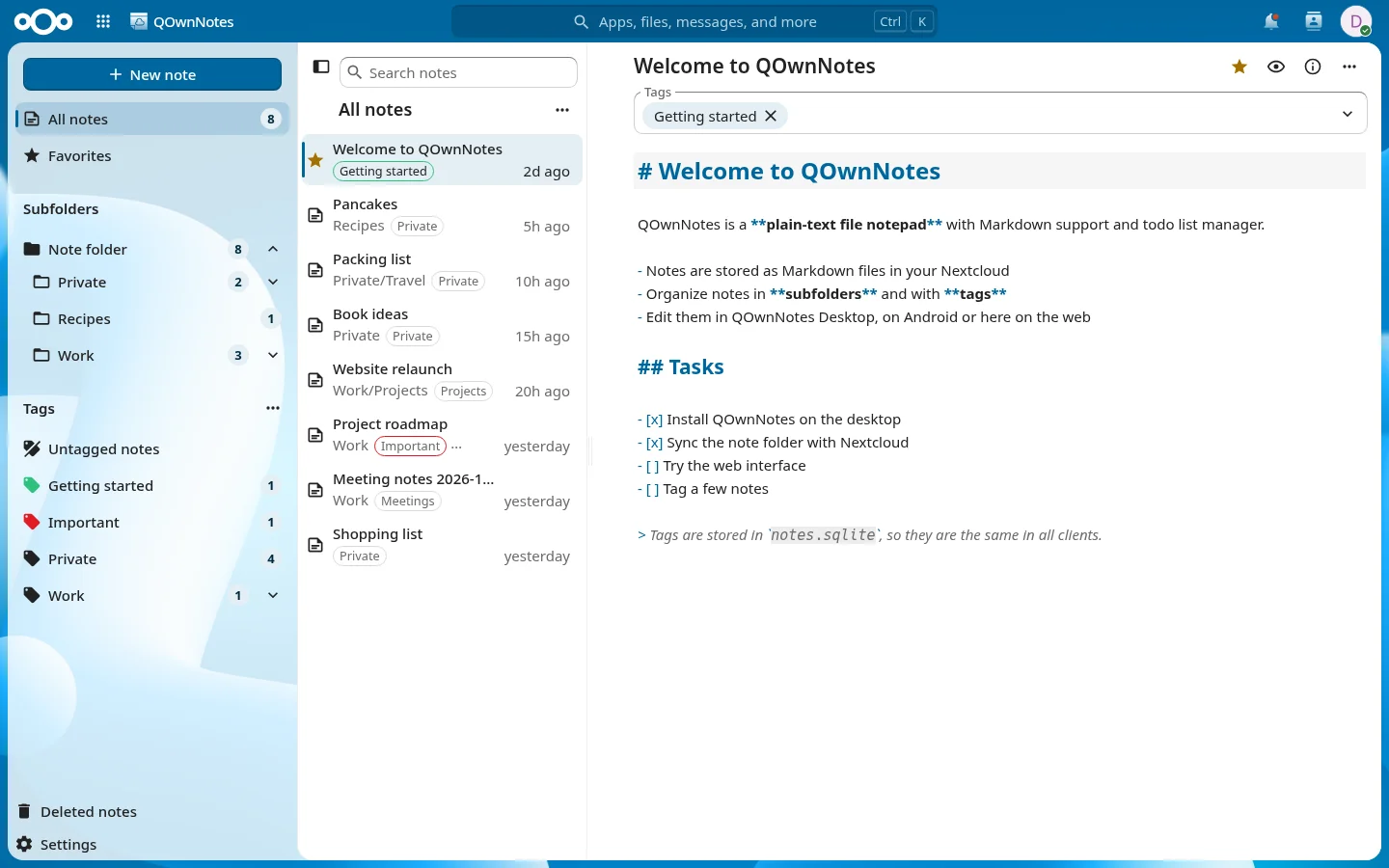
QOwnNotes for Nextcloud lets you view and edit the notes of your QOwnNotes note folder in the Nextcloud web interface, including note subfolders and the tags stored in the note folder's notes.sqlite.
It also provides the server APIs for QOwnNotes Desktop (note versions and trash) and QOwnNotes Android (a Nextcloud Notes API compatible note API). It replaces the QOwnNotesAPI app and, for QOwnNotes Android, the Nextcloud Notes app.
Features
- Notes stay plain Markdown files in your Nextcloud, organized in note subfolders like in QOwnNotes Desktop
- Tags with hierarchy and colors, read from and written to the note folder's
notes.sqlite, so they are the same in QOwnNotes Desktop, Android and on the web - Web interface with note list, note subfolder tree, tag tree and filters, Markdown editor with preview, conflict handling, versions and deleted notes
- Integrations: "Recent notes" dashboard widget, unified search (also by tags), link previews and "Open in QOwnNotes" in the Files app
- APIs: Notes API 1.4 for QOwnNotes Android and the QOwnNotes API for QOwnNotes Desktop and Android
- API-only mode: administrators can disable the web interface and only provide the APIs
Requirements
- Nextcloud 32 to 35
- PHP 8.2 to 8.5
- The PHP extension
pdo_sqlitefor tags (the admin settings show a hint if it is missing)
Installation
Install QOwnNotes from the Nextcloud App Store (category "Office") on your server's Apps page at https://<your-cloud-domain>/settings/apps, or with:
occ app:install qownnotes
Tips
Your notes don't need to be migrated. QOwnNotes for Nextcloud works on the same files in your Nextcloud as QOwnNotesAPI and Nextcloud Notes, and all three apps can be installed at the same time.
Note folder
If you never set a note folder in the app, it uses the note folder of the Nextcloud Notes app, or Notes. You can change it in QOwnNotes settings in the web interface, or in the settings of QOwnNotes Android.
Like in QOwnNotes Desktop, the folders media, attachments and trash, hidden folders and folders matching your "ignored subfolders" setting are not shown as note subfolders.
Markdown editor
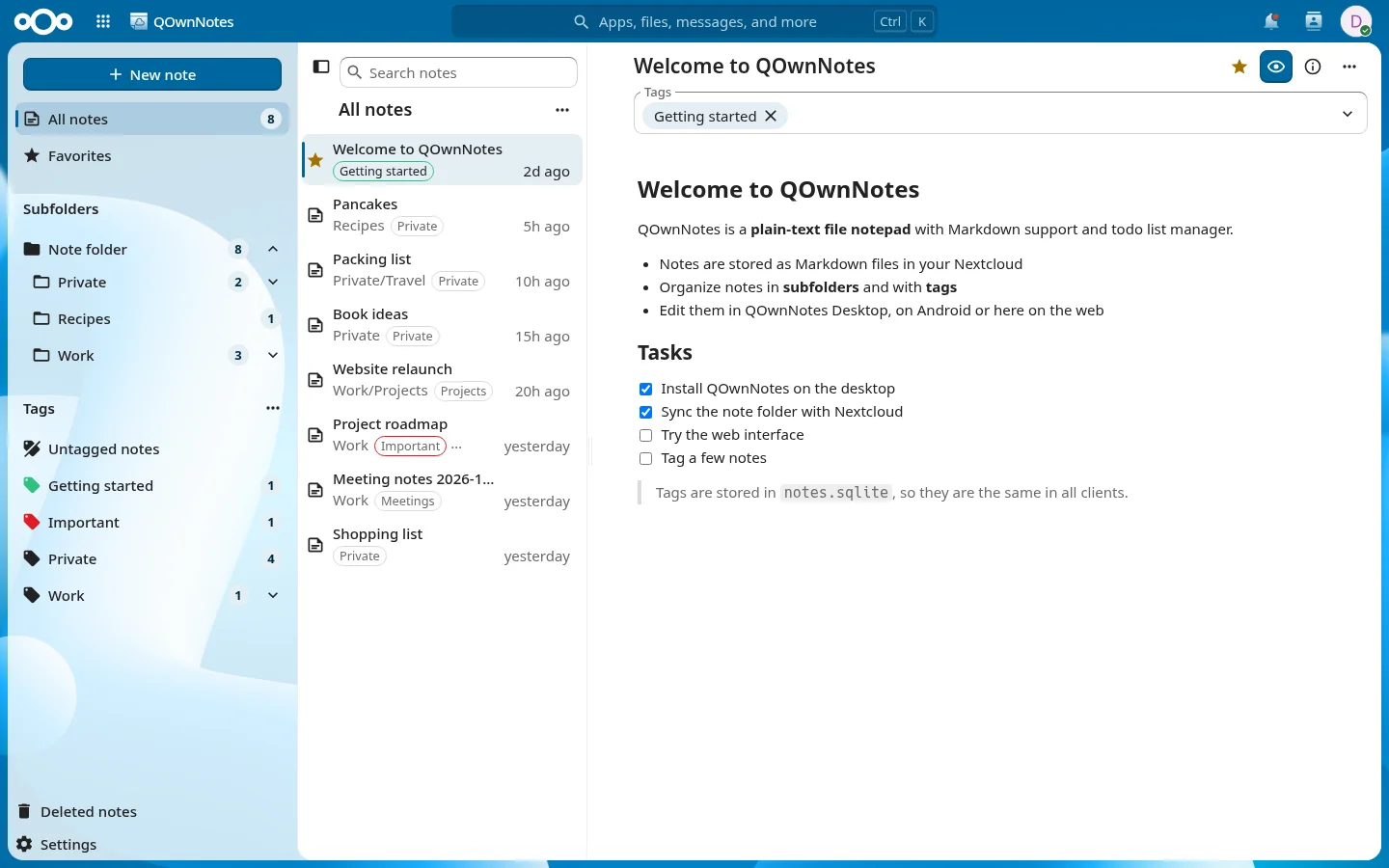
The editor highlights headings, inline formatting, links, task checkboxes, Markdown markers and comments. Fenced code blocks with a language label (for example js, python or php) also get syntax highlighting in the editor and the preview, with colors for light and dark themes.
| Shortcut | Action |
|---|---|
| Ctrl + F | Search in the note (also case, whole words and regex) |
| Enter | Jump to the next match in the search field |
| Shift + Enter | Jump to the previous match in the search field |
| Ctrl + Space | Check or uncheck the task at the cursor, or follow a link |
| Ctrl + Left click | Follow a link (Cmd on macOS) |
The arrow on the left of the search field shows the replace field.
Like in QOwnNotes Desktop, links to other notes like [TODO](TODO.md#todo) or <Journal.md> open the note, relative to the subfolder of the current note. The fragment jumps to a heading, either as URL-encoded heading text (#My%20heading) or as anchor (#my-heading), also within the same note. Links to other files, like [Audio recording](attachments/audio.m4a), and web pages open in a new browser tab. In the preview, a normal click is enough.
Live preview
In QOwnNotes settings → Editor, enable Show preview beside the editor and save. The Markdown preview appears on the right and updates as you type. Use the Preview button to hide or show it. On narrow screens, the preview appears below the editor.
The editor and the preview scroll together like in QOwnNotes Desktop, and switching between them keeps the position. This preference is remembered in the current browser only.
Tags
Tags are stored in the notes.sqlite database of your note folder, the same database that QOwnNotes Desktop uses. In the web interface you can:
- Filter notes by tags (all or any of the selected tags, child tags, untagged notes)
- Set tag colors for light and dark themes
- Move tags by drag and drop
- Tag, untag, favor or delete several selected notes at once (Ctrl/Shift + click)
Notes renamed or moved in the web interface keep their tags, and relative links to media files and attachments are adapted to the new subfolder depth.
Tips
Search for #tag in the Nextcloud unified search to find notes by their tags.
API-only mode
If you only want to provide the sync APIs, for example because your users use the Nextcloud Notes web interface, disable the web interface in the admin settings (section "QOwnNotes"), or with:
occ config:app:set qownnotes ui_enabled --value=no
The navigation entry, the web interface and all integrations (dashboard, search, link previews, Files action) disappear. The APIs keep working.
Users who only sync with QOwnNotes Desktop or Android can hide the navigation entry for themselves with Hide QOwnNotes from the app navigation in the settings of the web interface. The web interface stays available at /apps/qownnotes/.
Switching from QOwnNotesAPI or Nextcloud Notes
QOwnNotes Desktop and QOwnNotes Android detect the app by the capabilities of your server and use it instead of QOwnNotesAPI and Nextcloud Notes.
Warning
Keep the QOwnNotesAPI and Notes apps installed until all your users have updated to QOwnNotes Desktop and Android versions that support the new app.
Once all clients are updated, administrators can uninstall QOwnNotesAPI, and Notes if it was only installed for QOwnNotes Android. QOwnNotesAPI stays maintained for a transition period, and it stays the only option for ownCloud servers.
Differences to the Nextcloud Notes app for QOwnNotes Android users:
- New and renamed notes are numbered like in QOwnNotes Desktop (
Note 1.md) instead ofNote (2).md - Images and attachments are stored in the
mediaandattachmentsfolders of the note folder, like in QOwnNotes Desktop, instead of hidden.attachments.<id>folders; existing links keep working - The file suffix setting of the Notes app is not taken over; new notes are
.mdfiles - QOwnNotes Android syncs all notes once after the switch
Please read the migration guide for all the details.